Telegram Team Chat



Tap OPEN TELEGRAM on the card above to join the team chat.
TO NOT GO CRAZY
WhatsApp Announcements

Rob Robson WhatsApp... when there is a last minute change, it goes here first!
Zoom

Google Calendar

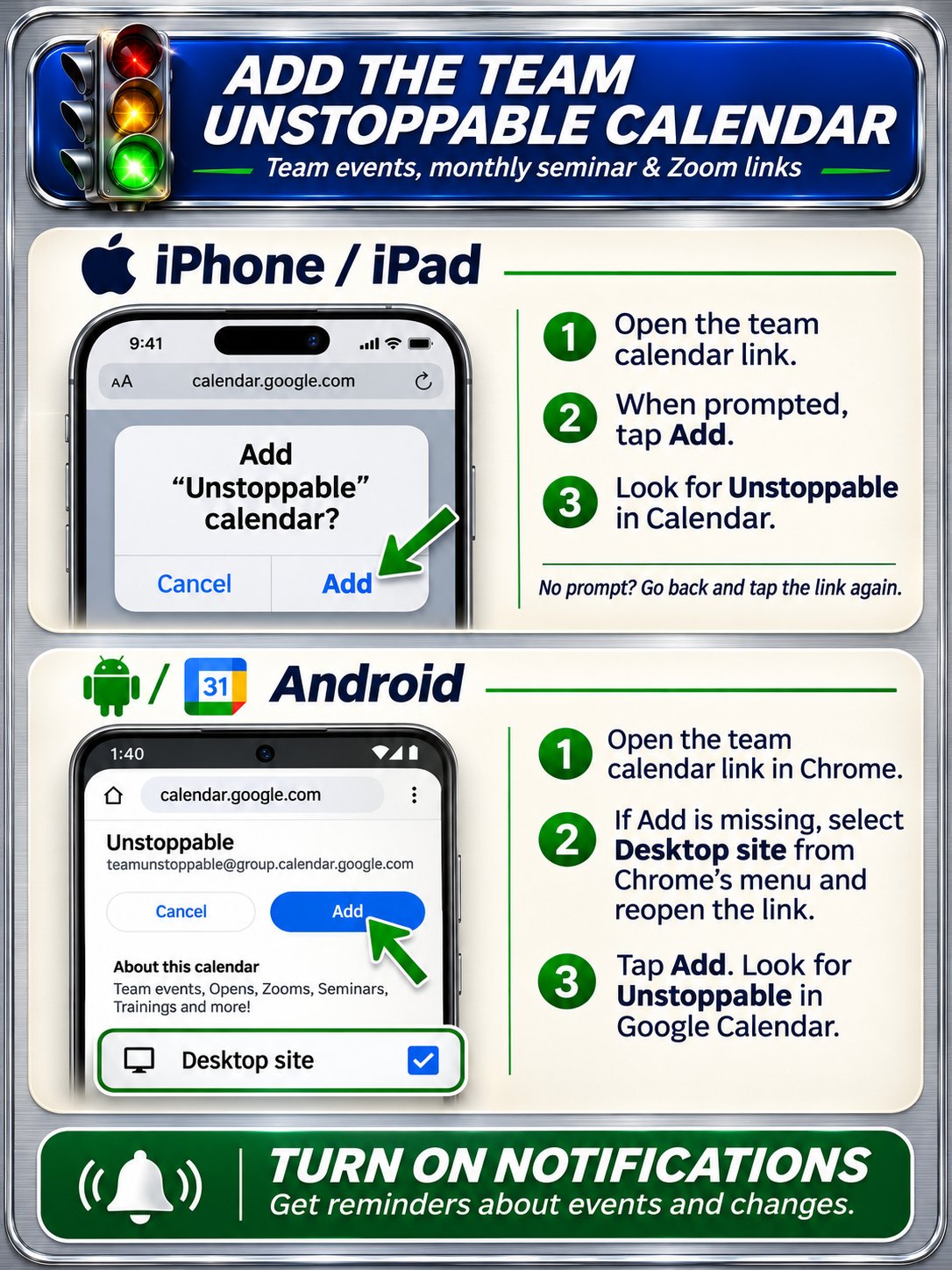
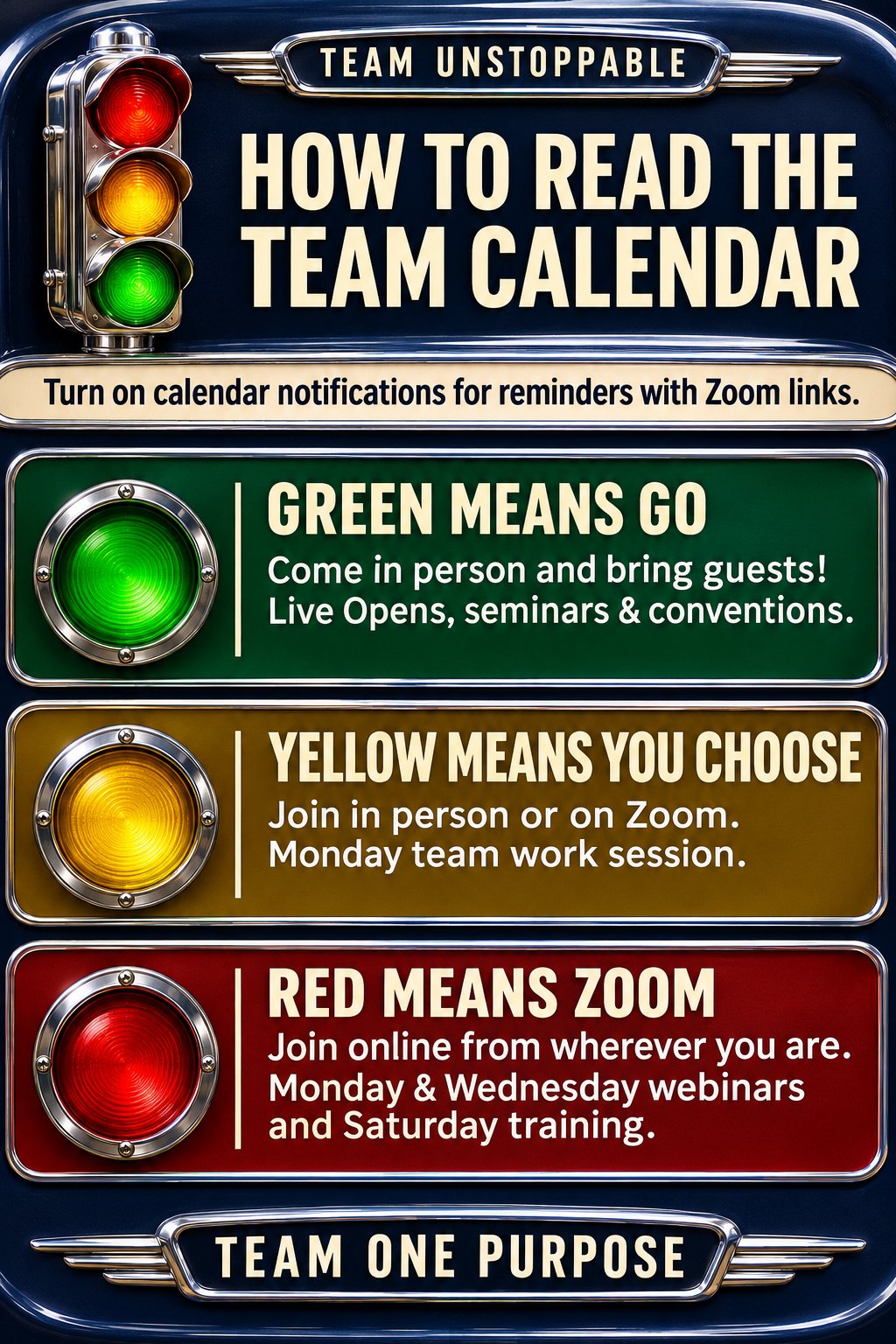
Link the team events into your own calendar, and turn on notifications to get the Zoom links in your reminders.

Connect With Leaders

In a war, one goal is to spread misinformation to confuse your enemy. Another is to cut off communication. Why?
“A divided army is easier to conquer.”
So if you want to throw a team off course, make people feel isolated, and make it harder for them to succeed, cut off their communication.
The opposite works in our favor. The more we’re on the same page, the easier it is to work together. So we’re going to be intentional about how we stay connected.
Start with three things on your phone
- Put the Starfish app on your home screen.
- Put Apple Wallet or Google Wallet right next to it.
- Set up the ways we communicate as a team.
Know where to go
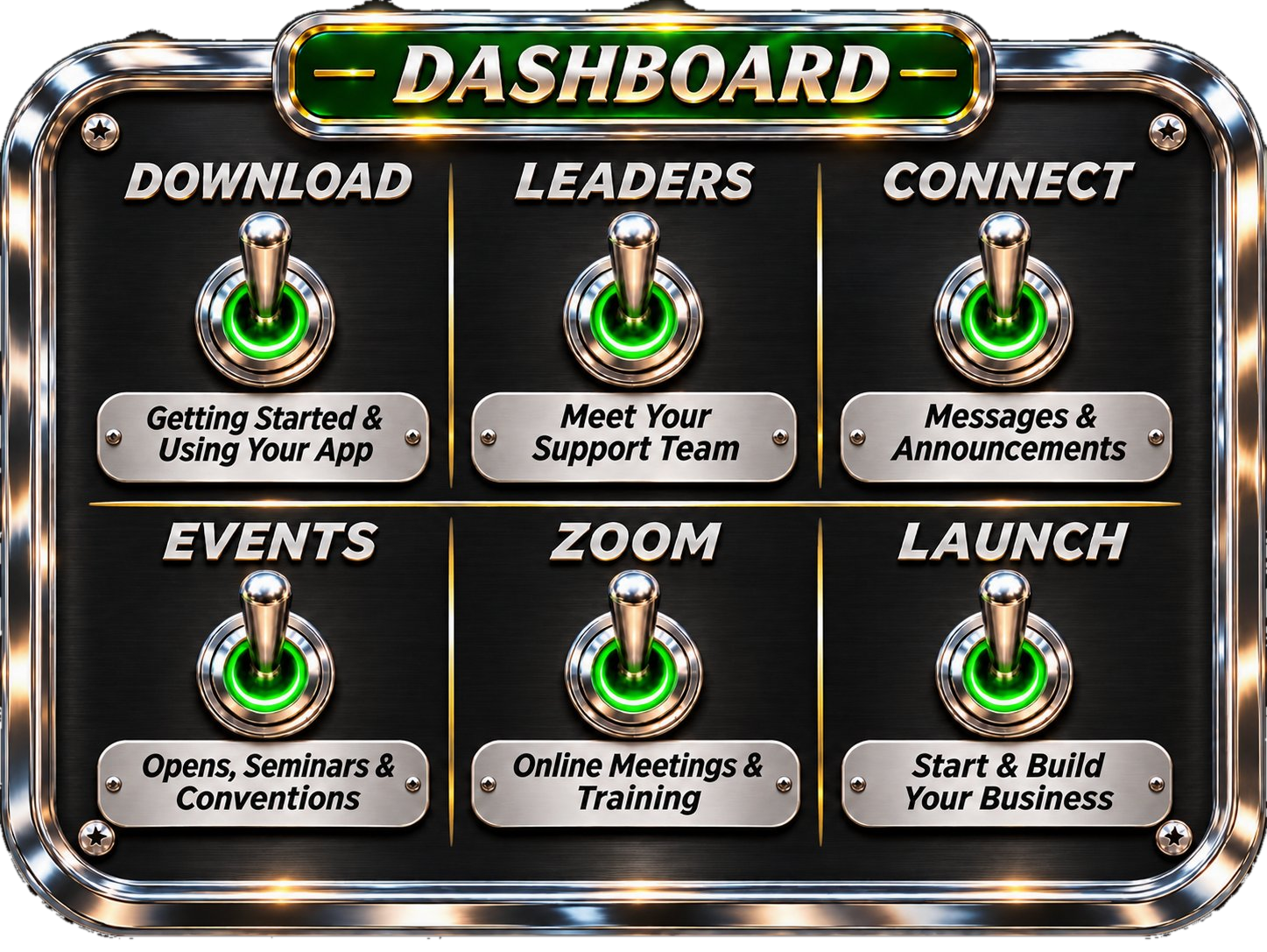
- Team Chat — Ask questions, get major announcements, and stay in touch with each other.
- Rob Robson’s WhatsApp — This is where Rob Robson posts big announcements. It’s quiet most of the time, so when he posts, take a look.
- Google Calendar — Plan ahead for the one or two days each month when we get together.
- Facebook Group — Share your wins and milestones. We want to celebrate with you!
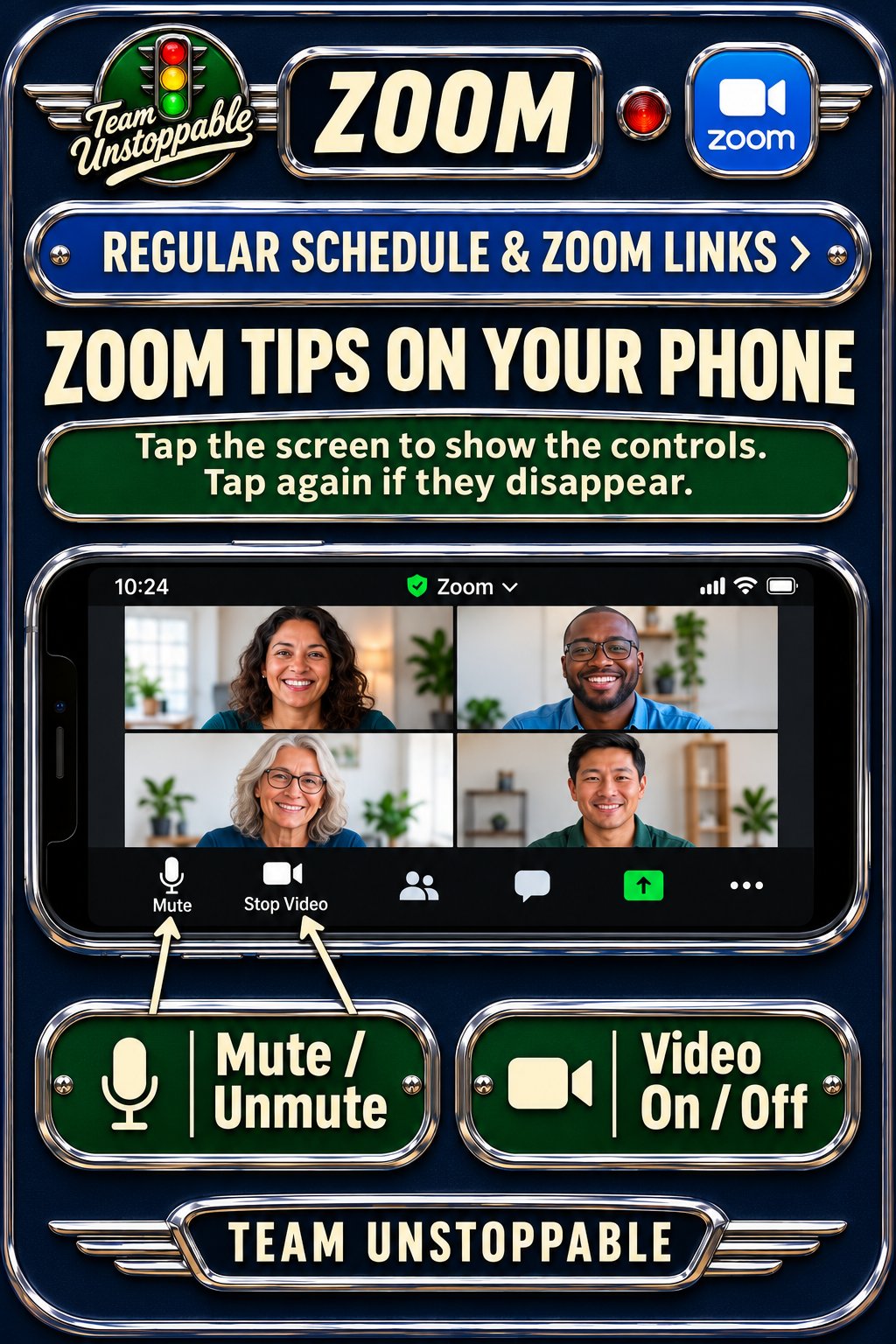
- Zoom — Learn how to use Zoom and join our online classes and trainings. The links will always be there.
- Team Phone Numbers — Find them on the Connect page when you need to reach someone directly.
When you tap to shift and land on Connect, take a few minutes to set it all up. Then when you have a question, want to join a training, or need to know what’s next, you’ll know exactly where to go.
Turn Websites Into App Links
ON ANDROID (CHROME)
- Open the website in Chrome on your phone.
- Tap the three dots in the top right corner.
- Tap Install and create shortcut, down near the bottom of the menu.
- If it says the app cannot be installed, tap Create shortcut.
- Name it whatever you want, then tap Add.
- Tap Add again on the "Add to Home screen?" box.
- Your new icon sits on your home screen like an app... tap it and it opens the site.
ON IPHONE (SAFARI)
- Open the website in Safari on your phone.
- Tap the Share button (the square with the arrow pointing up).
- Tap Add to Home Screen.
- Name it whatever you want, then tap Add.
- Your new icon sits on your home screen like an app... tap it and it opens the site.